Docs / Set it up
5. Get your Telnyx keys
Copy your API key and public key from the portal. The API key is shown once, so paste it somewhere safe immediately.
Knock needs two keys. They do different jobs:
| Key | What it does | Secret? |
|---|---|---|
| API key | Lets Knock answer calls, press digits and place calls on your behalf. | Yes. Treat it like a password. |
| Public key | Lets Knock check that a call event really came from Telnyx and not a stranger. | No, but keep it tidy |
The API key
- Open the account menu (top right) and choose API keys.
- Press Create API Key.
- Copy the key right away. Telnyx shows it once; afterwards it displays as "This API Key is encrypted" and can't be revealed again.
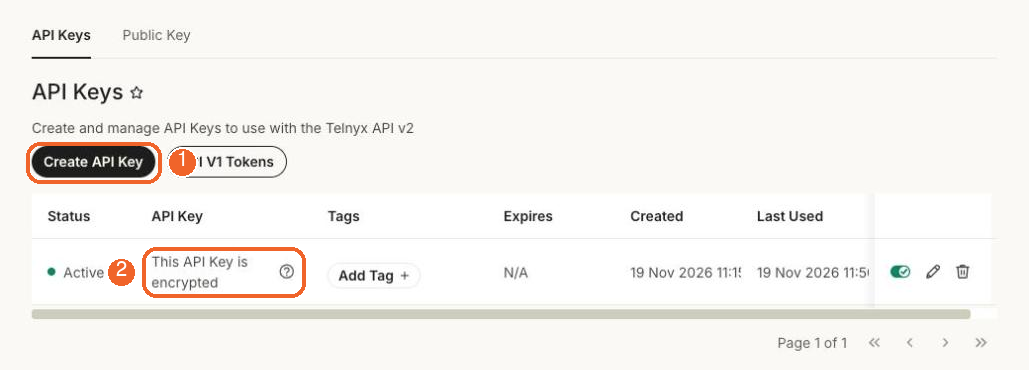
If you didn't copy it
You can't recover it. Create a new key, copy it this time, and delete the old one.
Where the API key may and may not go
Paste it into Vercel's environment settings (next page) and nowhere else. Never in a chat, an email, a ticket, a screenshot, or your Git repository. Anyone who has it can place calls on your Telnyx account.
The public key
- On the same page, open the Public Key tab.
- Press the copy icon next to Key.
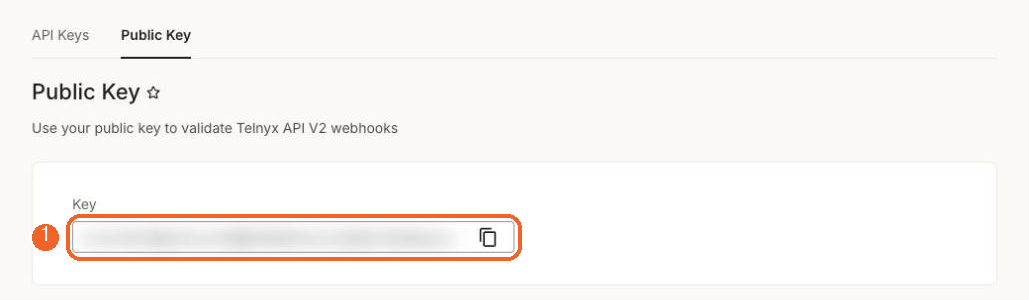
The public key is a long string of letters and numbers. Paste it exactly: no spaces before or after, no quotes.
What you have now
Have these four values ready for the next page:
- Application ID (from the Call Control app's Details tab)
- Your number, like
+14155550123 - API key
- Public key
Next: Give the keys to Knock