Docs / Set it up
First-time setup and test call
Create your household, see the five setup checks go green, and prove with a test call that Knock can answer, hold and send the unlock tone.
Open your Knock address in a browser, on the phone you'll use every day if you can. The first screen you see is the setup wizard. It has four steps: Household, Checks, Test call and Phones.
Step 1: Household
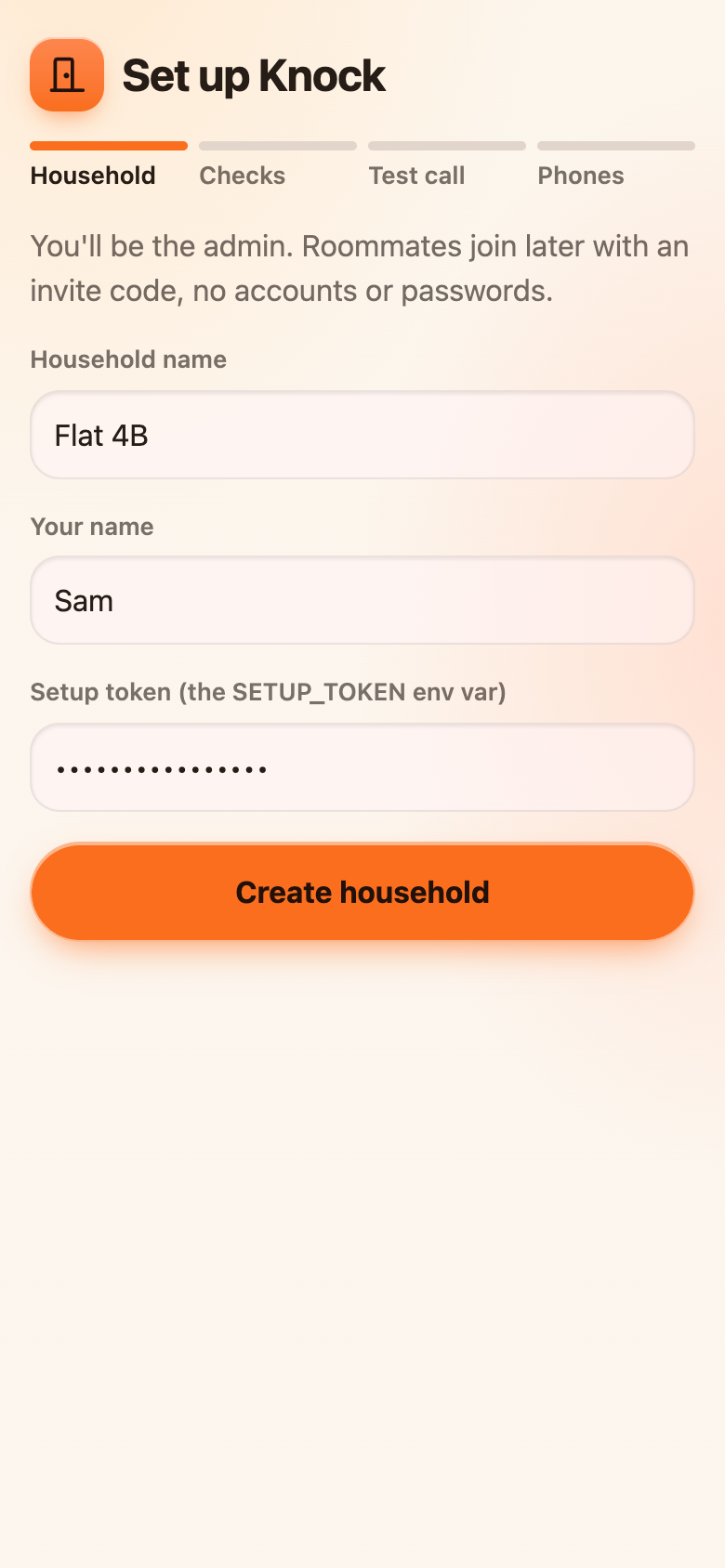
- Household name: anything, like
Flat 4B. Everyone sees it at the top of the app. - Your name: shown to the others as the person who opened the door.
- Setup token: the password you invented on the deploy step.
- Press Create household.
You are now the admin. This phone is signed in for good (it stores a private sign-in cookie), so you won't be asked for the token again.
If the screen says the token is missing on the server
The SETUP_TOKEN setting wasn't saved on Vercel, or the project wasn't redeployed after adding it. Add it under Settings, Environment Variables and redeploy.
Step 2: Checks
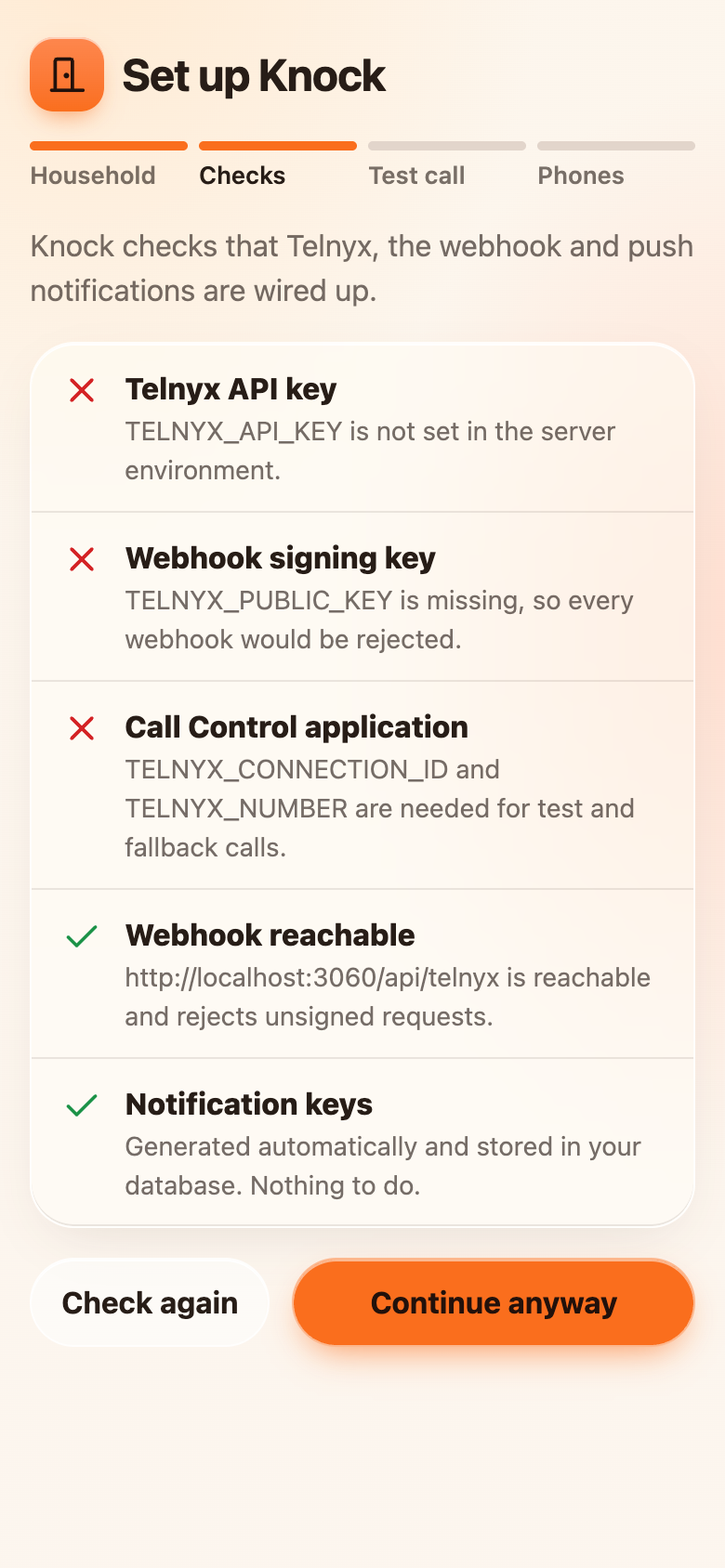
Knock checks that everything is wired up. After the Telnyx setup you should see all green. This screenshot shows a brand-new install where Telnyx hasn't been connected yet:
| Row | Green means | If it's red |
|---|---|---|
| Telnyx API key | Telnyx accepted your key. | TELNYX_API_KEY is missing or wrong, or you haven't redeployed. |
| Webhook signing key | The public key is set. | TELNYX_PUBLIC_KEY is missing, so every webhook would be rejected. |
| Call Control application | Application ID and number are set. | TELNYX_CONNECTION_ID or TELNYX_NUMBER is missing. |
| Webhook reachable | Your site answers on /api/telnyx and rejects unsigned requests. |
The address is wrong, or Vercel protection is blocking public access (see Troubleshooting). |
| Notification keys | Knock created its own, or yours are valid. | If you set VAPID_ keys yourself, one is wrong; delete both and Knock creates its own. |
On your site the "Webhook reachable" row names your own Vercel address.
Press Check again after each fix. Continue anyway lets you carry on, but the test call won't work until the Telnyx rows are green.
Step 3: Test call
Knock calls your own phone, answers on your behalf, speaks, holds the line, sends the unlock tone, and hangs up. This proves Telnyx, your number, the outbound voice profile and the app all work together.
- Enter your mobile number in international format, like
+14155550123. - Press Call me and answer when your phone rings.
- Listen for a short voice message and then a beep.
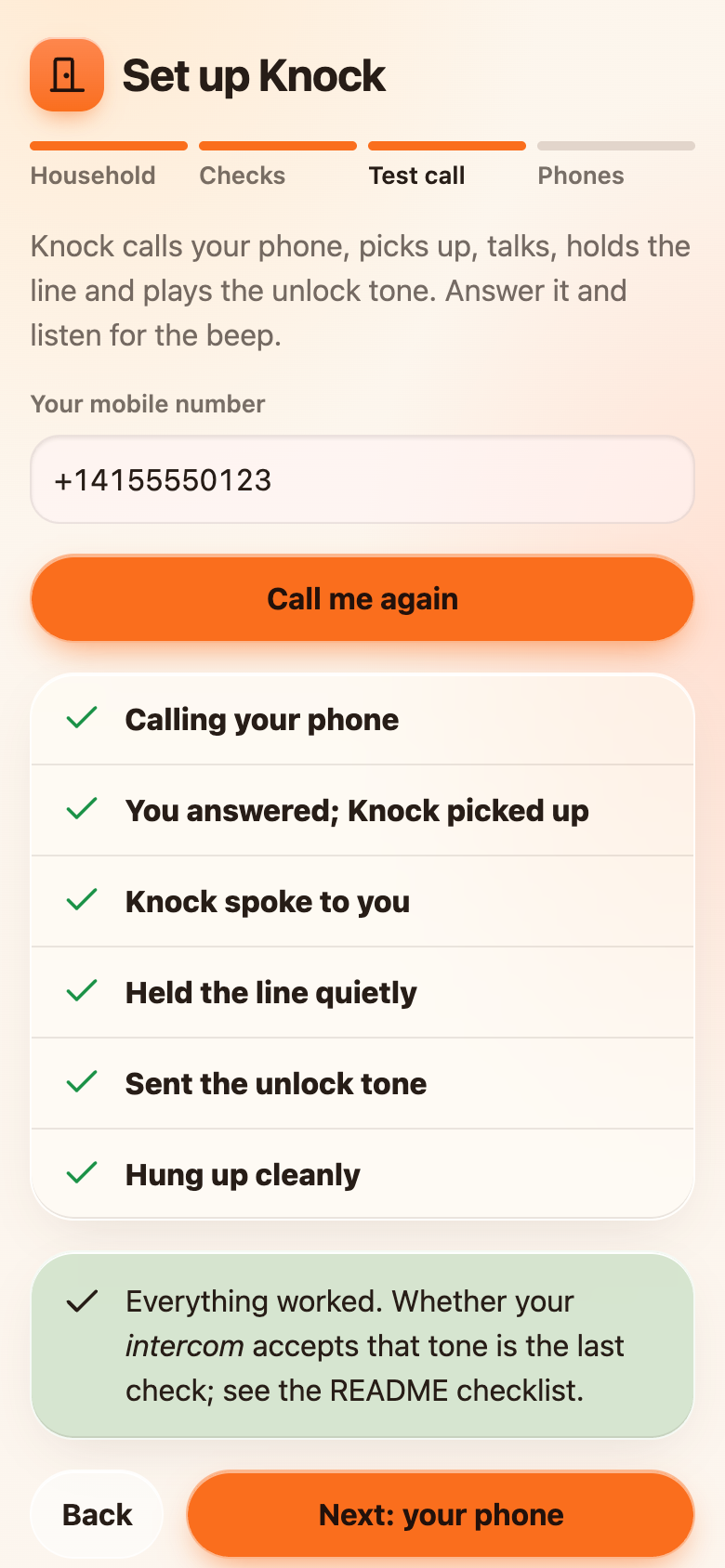
Each line ticks as it happens. If a line never ticks, that's the step that failed.
Trial accounts can only call the number they verified
If you're still on a Trial account, the test call only works to your verified mobile. See Upgrade to Paid.
The test call does not prove your building's intercom accepts the tone. Only a real visitor does that. It proves everything on your side is ready.
Step 4: Phones
The last step does two things:
- Turn on notifications on this phone. See Roommates and phones for iPhone specifics. On iPhone, notifications only work once you have added Knock to your Home Screen and opened it from there.
- Make an invite code for a roommate, if you want to do it now.
Press Open Knock. You're in.
Next: Roommates and phones