Docs / Set it up
Roommates and phones
Invite your household with single-use codes, install Knock like an app on iPhone or Android, and turn on notifications. Takes about two minutes per person.
Nobody needs an app store, an account or a password. Each person opens your link, enters a code and their name, and turns on notifications.
Make an invite code (admin)
- In Knock, open Settings.
- Find Invite a roommate.
- Choose how long the code lasts: 1 hour, 1 day or 7 days.
- Press Make an invite code. A code like
KNOCK-7QXM-2PTRappears. - Press Copy code and send it to your roommate, along with your Knock address.
The code is shown once, and works once
Once someone uses it, it's gone. The list under "Waiting to be used" only shows a masked hint, never the real code. If a code is lost or sent to the wrong person, press Rotate: cancel all unused invites.
Install it like an app (do this first)
iPhone (Safari, iOS 16.4 or newer)
- Open your Knock address in Safari (not inside another app's browser).
- Tap the Share button (the square with an arrow, at the bottom of the screen).
- Choose Add to Home Screen, then Add.
- Close Safari and open Knock from the new Home Screen icon. This is not optional: iPhone only allows notifications from an app opened this way.
Android (Chrome)
- Open your Knock address in Chrome.
- Tap the ⋮ menu, then Install app (or Add to Home screen).
- Open Knock from its icon.
Join (each roommate)
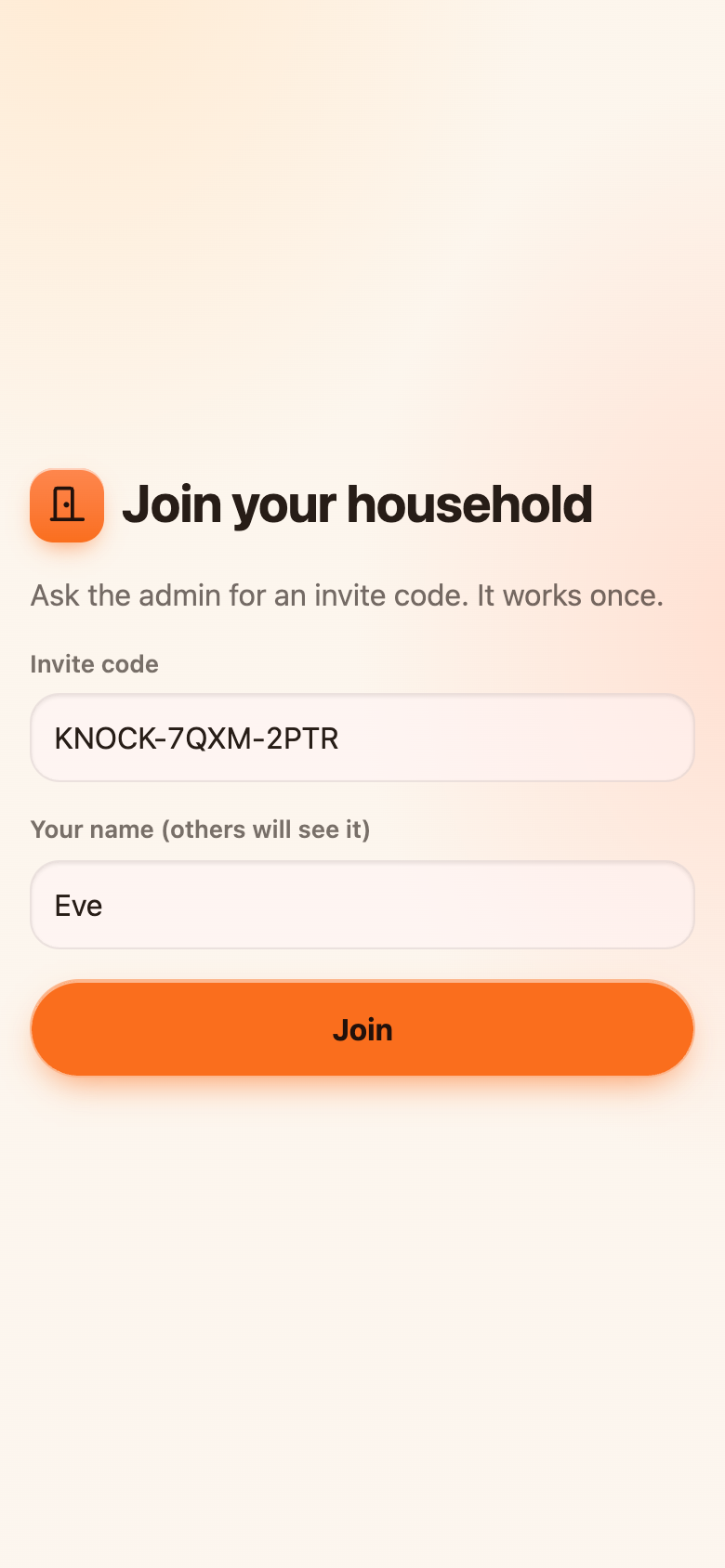
- Open Knock from the Home Screen icon you just created (see above).
- Enter the invite code and a name. Others see this name as "Opened by …".
- Press Join.
Install first, then join
On iPhone, the Home Screen app and Safari don't share a sign-in. If you join in a Safari tab and then install, you'll have to join again, and your code will already be used. Install first, open from the icon, then join.
Turn on notifications
- In Knock, open Settings.
- Under Notifications, press Enable notifications and allow them when your phone asks.
- Press Send test notification. A notification should arrive within a few seconds.
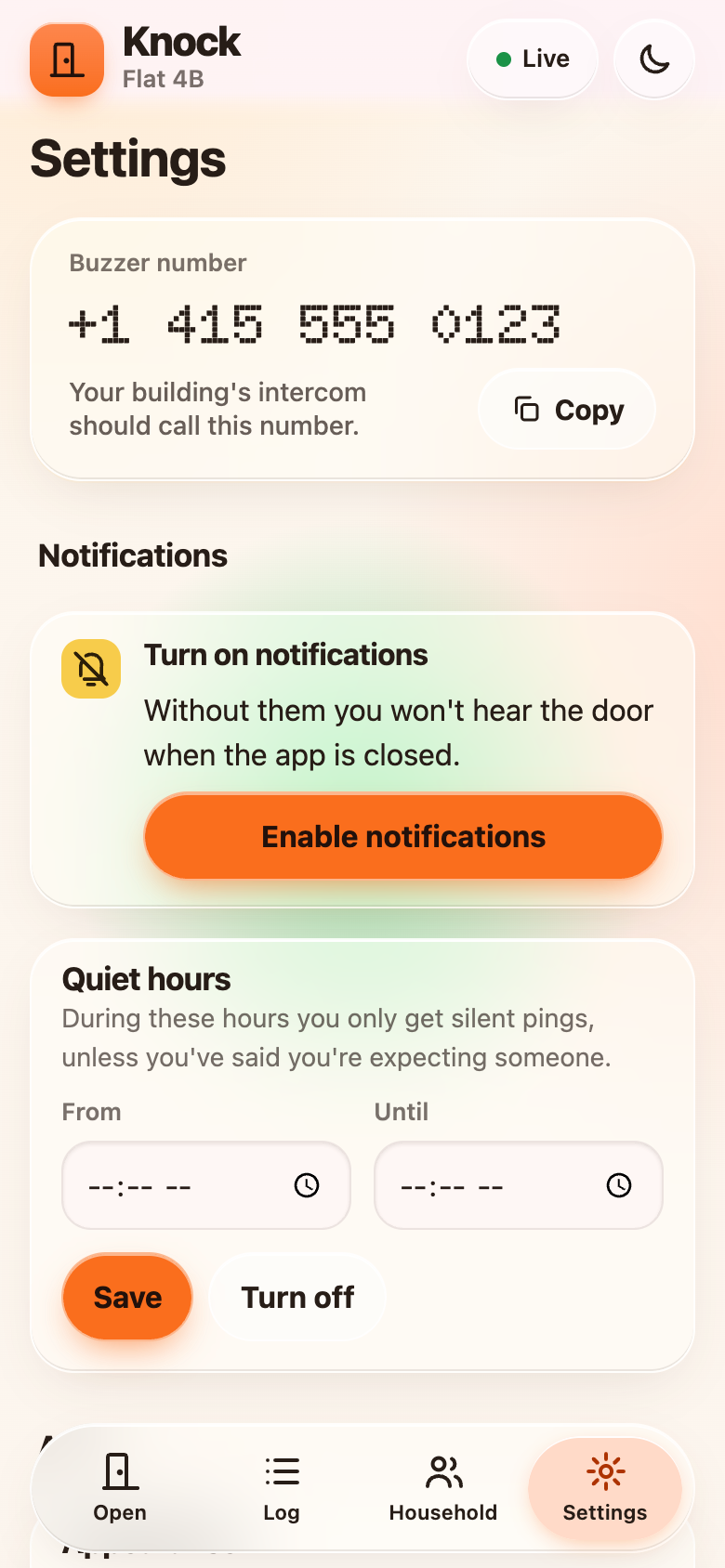
If the test notification shows an error, the message names the cause. The most common ones:
| You see | What it means |
|---|---|
| "On iPhone, add Knock to your Home Screen first" | Open it from the Home Screen icon, not Safari. |
| "Notifications are blocked" | In your phone's settings, find Knock (or the browser) and allow notifications, then reload. |
| "This phone's subscription expired" | Press Turn off, then Enable notifications again. |
| "Notifications aren't set up on the server yet" | The admin needs to fix the push keys. See Troubleshooting. |
If notifications are on but you don't hear them
Check your phone's Focus or Do Not Disturb mode, and iPhone's Settings, Notifications, Knock. Quiet hours inside Knock also silence pings; see Using Knock.
Managing people and phones (admin)
In Settings, People & phones you can see each person and their phones. Sign out phone removes one device (a lost phone, say) without removing the person. Remove person deletes the person and all of their phones.
Next: Connect your building