Docs / Set it up
1. Create and verify your Telnyx account
Sign up for Telnyx and pass its identity checks. After this you will have a Trial account, which is enough to look around but not enough to receive your building's calls.
1. Sign up
- Go to telnyx.com and choose Sign up.
- Use an email address you check regularly. Telnyx will send a verification email.
- Use a password manager for the password, and turn on two-factor sign-in when it offers. You need two-factor anyway for the Paid upgrade.
2. Pass the identity check
Telnyx runs a fraud review on new accounts. Per Telnyx's documentation, you verify by connecting a LinkedIn or GitHub account. Choose either one.
Read the permission screen before you approve
Verifying through GitHub shows a screen listing what Telnyx can see. Basic profile and email access is normal. If it asks for access to your repositories, especially private ones, say no and use LinkedIn instead. Your Knock repository is private and Telnyx has no reason to read it. You can review and remove what you've granted at any time in GitHub's settings.
3. Verify one mobile number
Trial accounts require one verified mobile number. Telnyx sends a code by text or voice call.
- Use a phone you can answer now.
- This number becomes your verified number. On a Trial account, it is the only number Telnyx will let call you or be called.
What you should see
After this, the portal opens on a welcome page and the account is on the Trial level.
To confirm: open the account menu at the top right, choose Account settings, then the Account Levels tab.
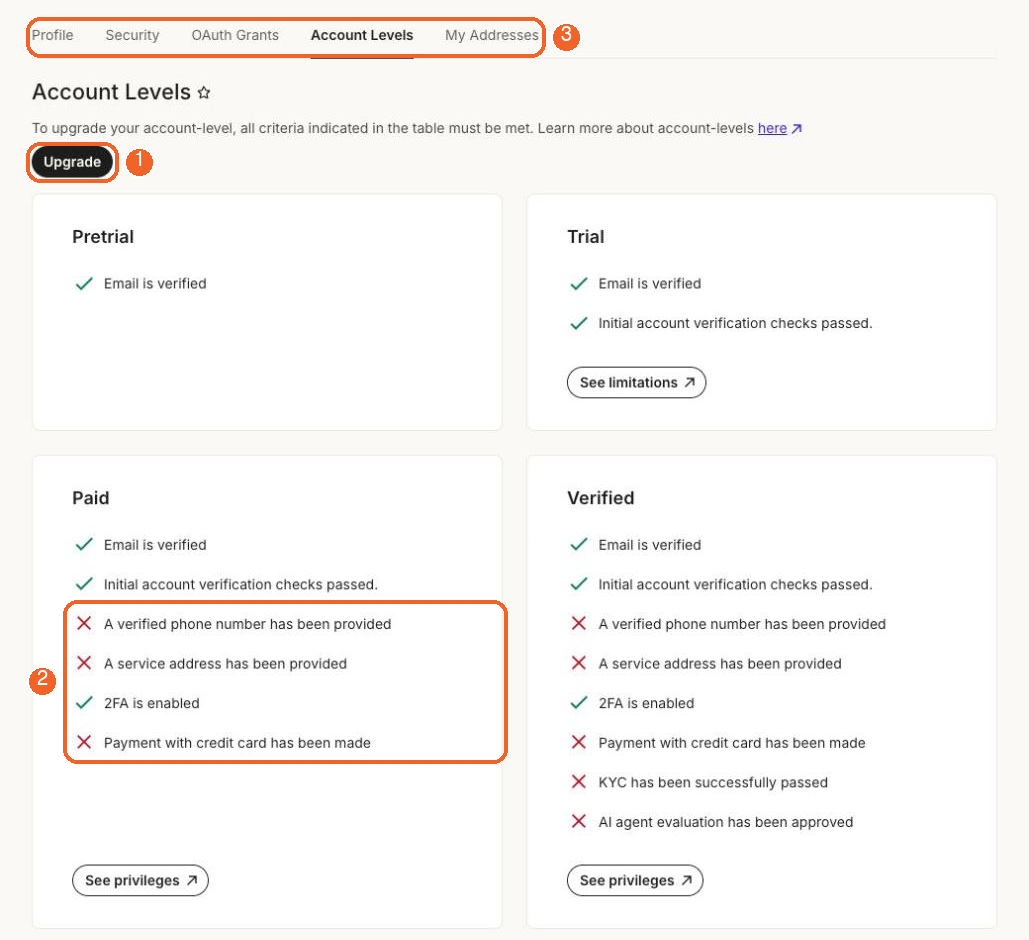
If Trial shows green ticks for "Email is verified" and "Initial account verification checks passed", you're done with this page. The red crosses under Paid are the next page's job.
If something goes wrong
| Problem | What to do |
|---|---|
| No verification email | Check spam, then use the resend link on the sign-up page. |
| The identity check keeps failing | Try the other option (LinkedIn or GitHub), or contact Telnyx support from the portal's help icon. |
| It won't accept your mobile number | Use the full number with country code, for example +1 415 555 0123. |
Next: Upgrade to Paid